Studio guide

Inside the manuscript studio

Written for fiction authors: the same layout you'll use when you write—chapters left, draft centre, notebook and codex right. Each section pairs short notes with a real screen.

Signed in already? Use ? in the toolbar or Take the tour on your desk for an interactive walkthrough with live highlights.

The workflow

From desk to export

Read in order or jump ahead—each block matches one part of the app.

Desk & shelf

Every project in one place.

  • Create a novel or import Word (.docx)—chapters appear on the shelf automatically.
  • Each card opens an isolated writing room: its own chapters, codex, and exports.
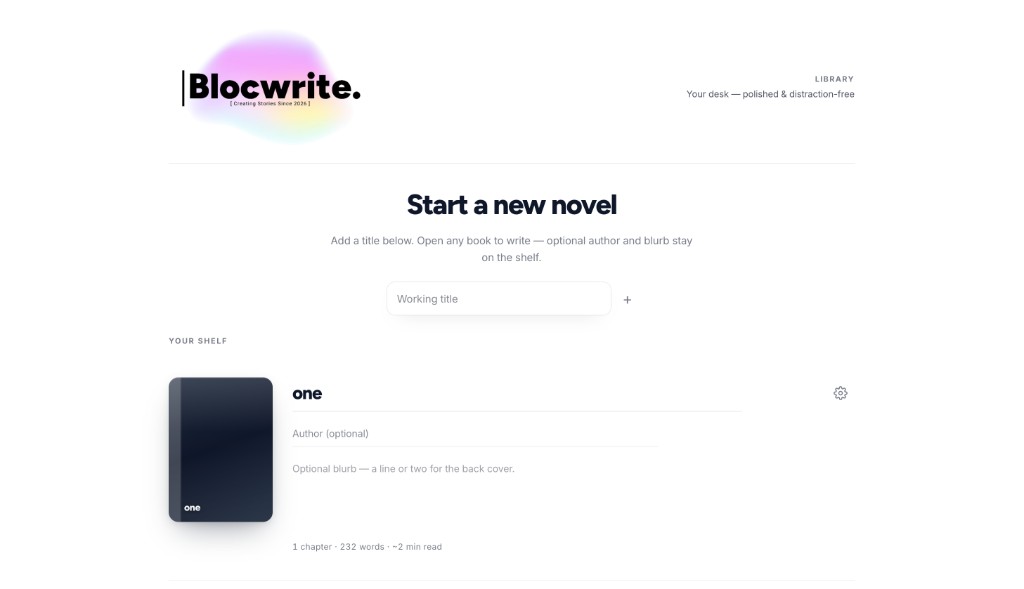
Blocwrite desk with novel shelf

Chapters

Structure on the left rail.

  • Add, rename, reorder, and jump between chapters without leaving the room.
  • The header always reflects the active chapter.
Blocwrite chapter list beside the draft

The draft

Where the prose lives.

  • Full-height editor with typography controls in the toolbar.
  • Focus mode on desktop; autosave locally with account sync online.
Blocwrite chapter editor

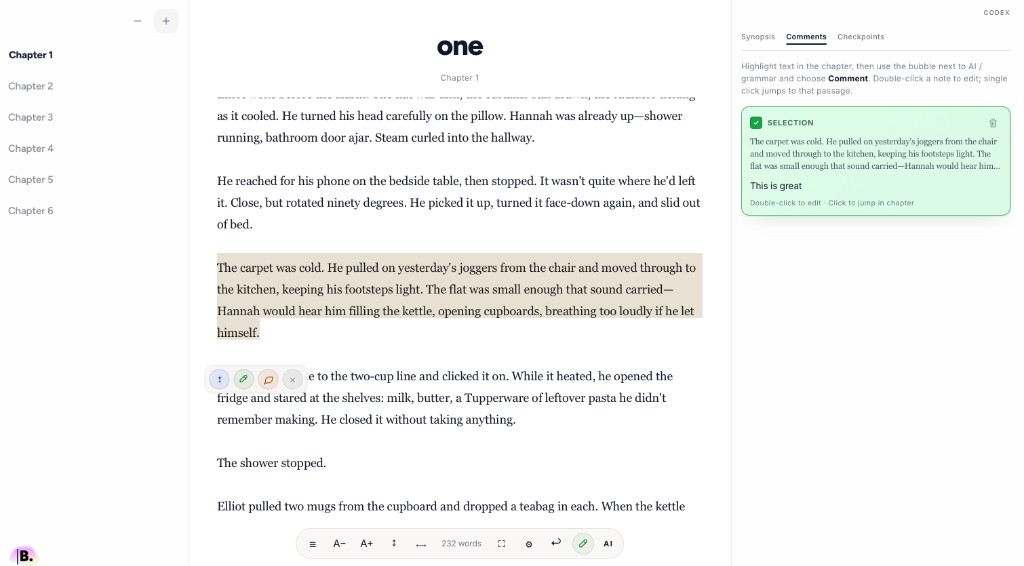
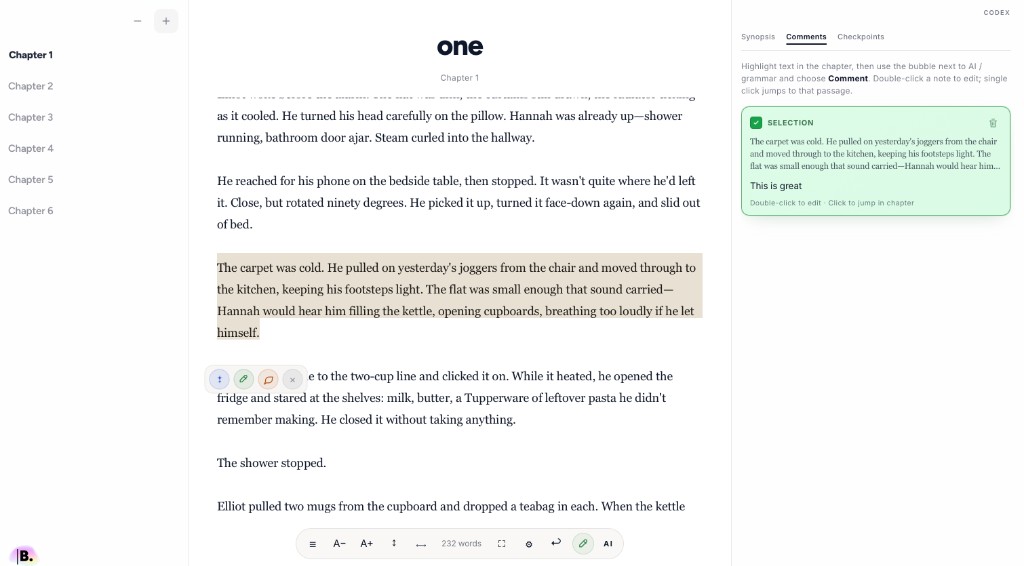
Notebook

Planning and feedback beside the text.

  • Synopsis: what this chapter must accomplish.
  • Comments (your notes), Checkpoints (named snapshots), Reader (beta annotations).
Blocwrite notebook with synopsis and comments

Codex

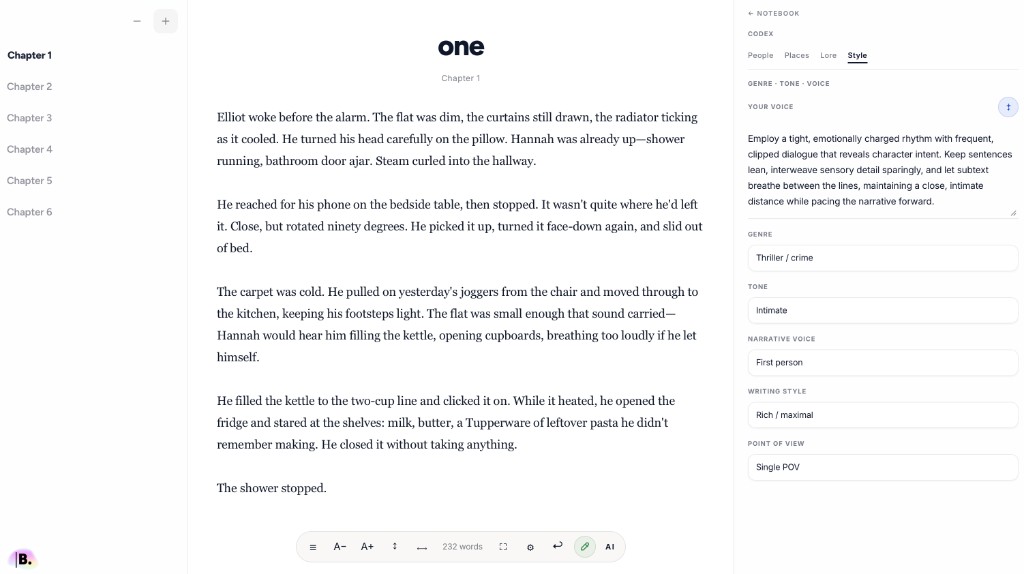
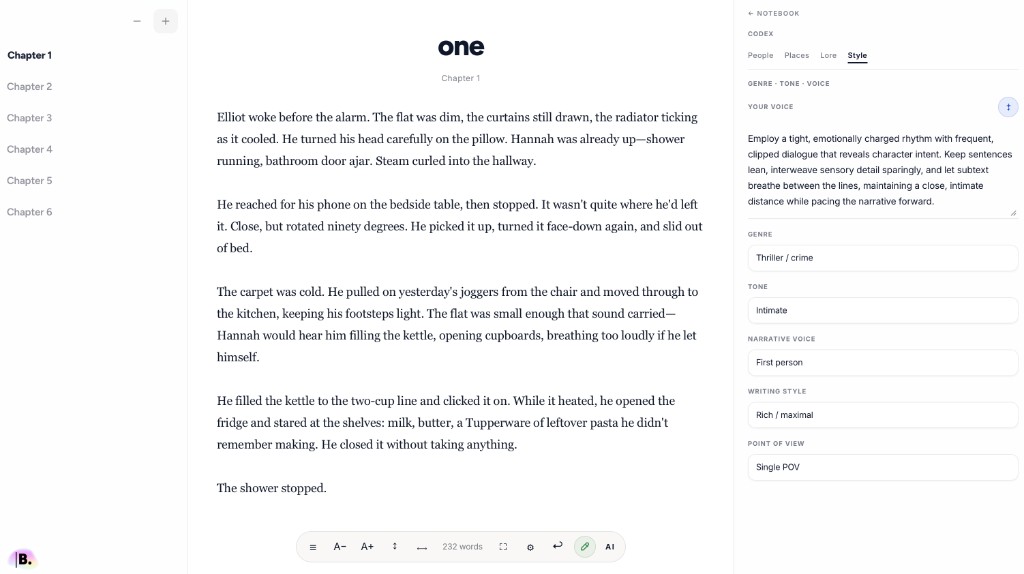
Your story bible.

  • Characters, locations, lore, and voice settings belong to this novel only.
  • Chat and Blocs use the codex so suggestions stay consistent with your world.
Blocwrite codex story bible

Chapter Chat

Scene-aware conversation that can run Studio for you.

  • Discuss the open chapter with context from the codex—no generic prompt box.
  • Many requests apply automatically (rewrite, synopsis, codex rows); destructive steps ask you to confirm first.
  • In the app, tap **?** on the chat panel for categorized prompt chips, or say **what can you do**.
  • See **Chapter Chat prompts** below for every example phrase.
Blocwrite chat beside the chapter

Chapter Chat prompts

What to say — and what happens.

  • Open the Chat tab in the notebook (right rail). Chat reads this chapter’s draft, synopsis, codex, neighbour chapters, and checkpoints.
  • Connect OpenRouter in Settings → AI Connect — you bring your own model and cost control.
  • Most edits apply when you approve them; restore, export, and big rewrites ask you to confirm first.

Write & rewrite

Draft and revise this chapter’s prose.

  • Tighten the opening — keep voice, cut filler
  • Rewrite the whole chapter — same plot, sharper prose
  • Make the first line hook harder
  • Fix the first sentence
  • Rewrite the opening paragraph
  • Make it darker and more tense
  • Make it funnier without losing the stakes
  • Make it warmer and more intimate
  • Add more subtext to the dialogue
  • Shorten this chapter by about 20% without losing beats
  • Expand this chapter — more scene, same structure
  • Fix the ending — land the emotional turn
  • Punch up the argument scene
  • Show don’t tell in the middle section
  • Line-edit for clarity — don’t change the plot

Plan & structure

Beats, synopsis, and book-wide sense.

  • Give me a beat sheet for this chapter
  • Summarize this chapter in 5 bullets
  • Brainstorm three directions for this scene
  • Update synopsis from the draft
  • Synopsis for all chapters
  • Continuity check — does this fit after the last chapter?
  • Continuity audit across the book
  • Does the last chapter hand off cleanly into this one?
  • What should I do next in the book?
  • Does this chapter make sense?
  • Suggest a stronger chapter title
  • Rename this chapter like the others

Codex & cast

Characters, places, lore, and voice.

  • Add a new character from this chapter to the codex
  • Add this location to the codex
  • Update codex notes for the POV character
  • Open codex people
  • Open codex places
  • Open codex lore
  • Open codex events
  • Refine voice and style in the book codex
  • Update genre and POV in the codex
  • Create a timeline event for what happens here

Studio actions

Tabs, saves, export — chat runs the app for you.

  • How many words in this chapter?
  • Create a save before I rewrite
  • Save a checkpoint called before rewrite
  • List checkpoints
  • Compare latest vs previous checkpoint
  • Restore latest checkpoint
  • Proofread this chapter
  • Refine this chapter — grammar only
  • Apply reader notes
  • Implement my feedback
  • List margin comments
  • Share this book with beta readers
  • Export to Word
  • Export to EPUB
  • Add a chapter
  • Move after chapter 3
  • Open synopsis
  • Open comments
  • Open checkpoints
  • Open reader tab
  • Undo last edit

Craft chat

Questions and editorial passes (no auto-apply unless you ask).

  • What’s weak about the pacing here?
  • Where am I telling instead of showing?
  • Is the dialogue on-voice for each character?
  • Flag any plot holes in this chapter
  • Where might the reader get confused?
  • Give me 5 alternate titles for this chapter
  • What would you change if this were literary fiction?
  • Interview me about this scene — memoir mode
  • Add this selection to a margin comment

After the coach replies

Say “yes” or “apply it” to merge the last suggested draft. Use Refine when you only want grammar, not a rewrite.

In the studio

Tap ? on the chat panel to open the same prompt library beside your draft, or say “what can you do”.

Blocwrite Chapter Chat prompt examples

Blocs

Preview-first scene assists.

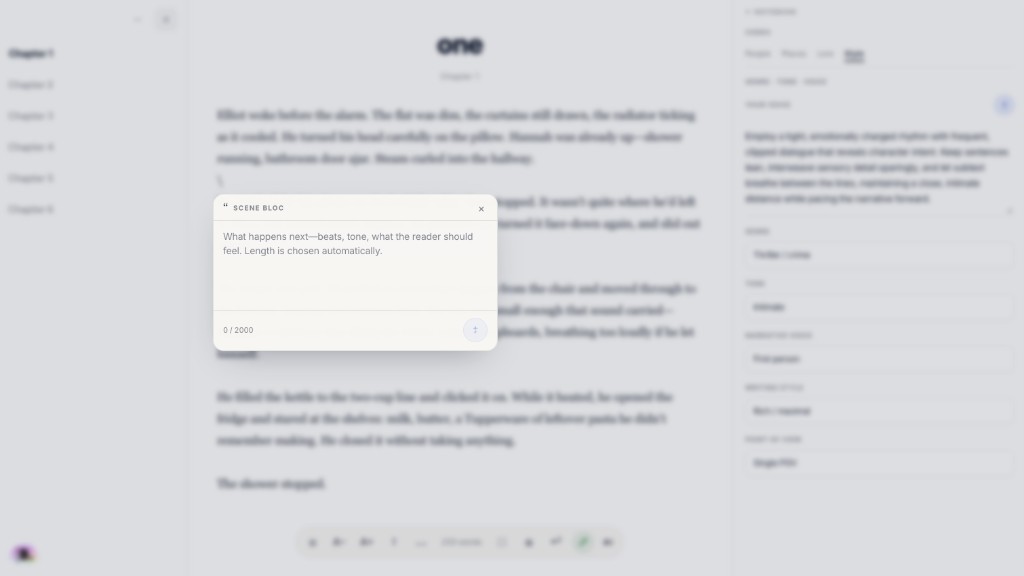
  • Type \ in the draft for Idea or Scene Blocs—beats or longer passages.
  • Nothing enters the manuscript until you accept the preview.
Blocwrite Blocs preview in the editor

Share & export

Feedback in, files out.

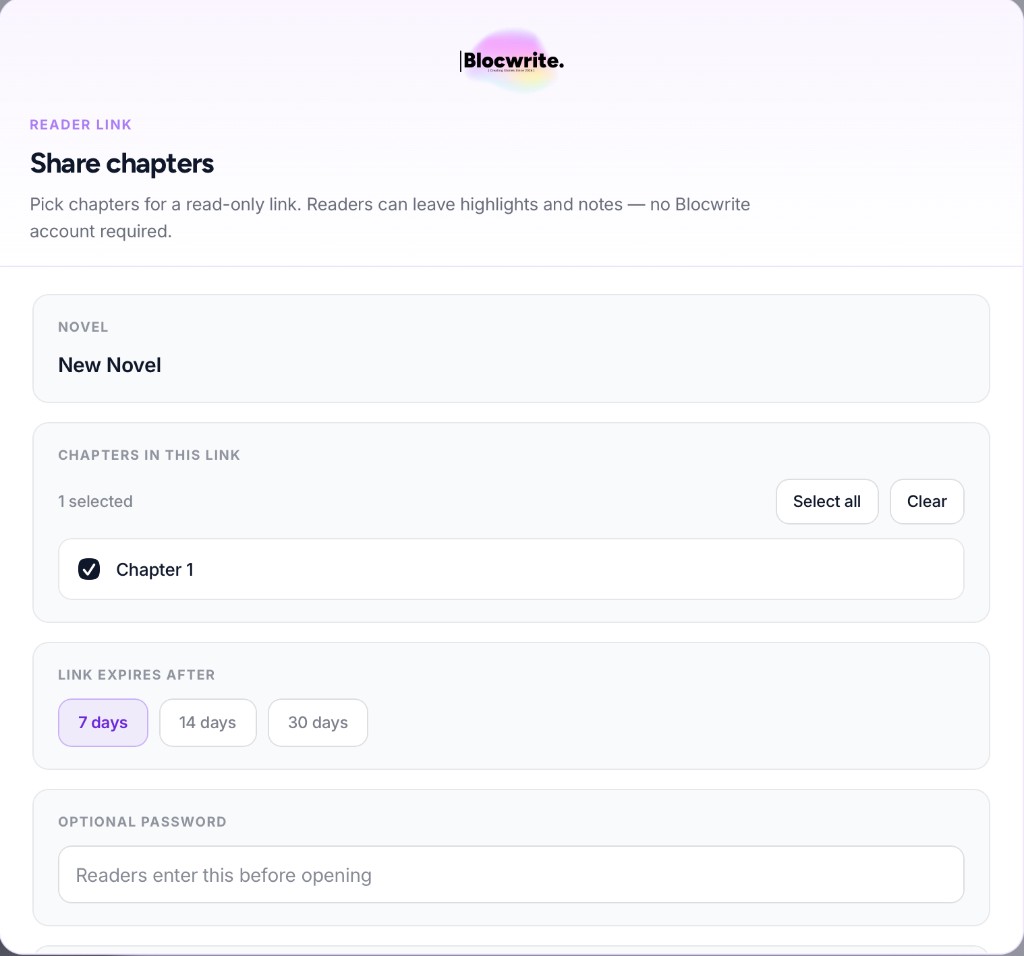
  • Share chapters: pick sections, set expiry, optional password—readers annotate without signing up.
  • Export EPUB or Word from the novel menu when you are ready to submit or publish.
Blocwrite share chapters dialog with reader link options

Open your desk

Start a trial for full access, or sign in to pick up where you left off. The in-app tour replays from ? whenever you need it.

Go to studio